Data Backup Solutions The 3 Best for Personal Use
Discover reliable data backup solutions to protect your important files from loss or corruption.
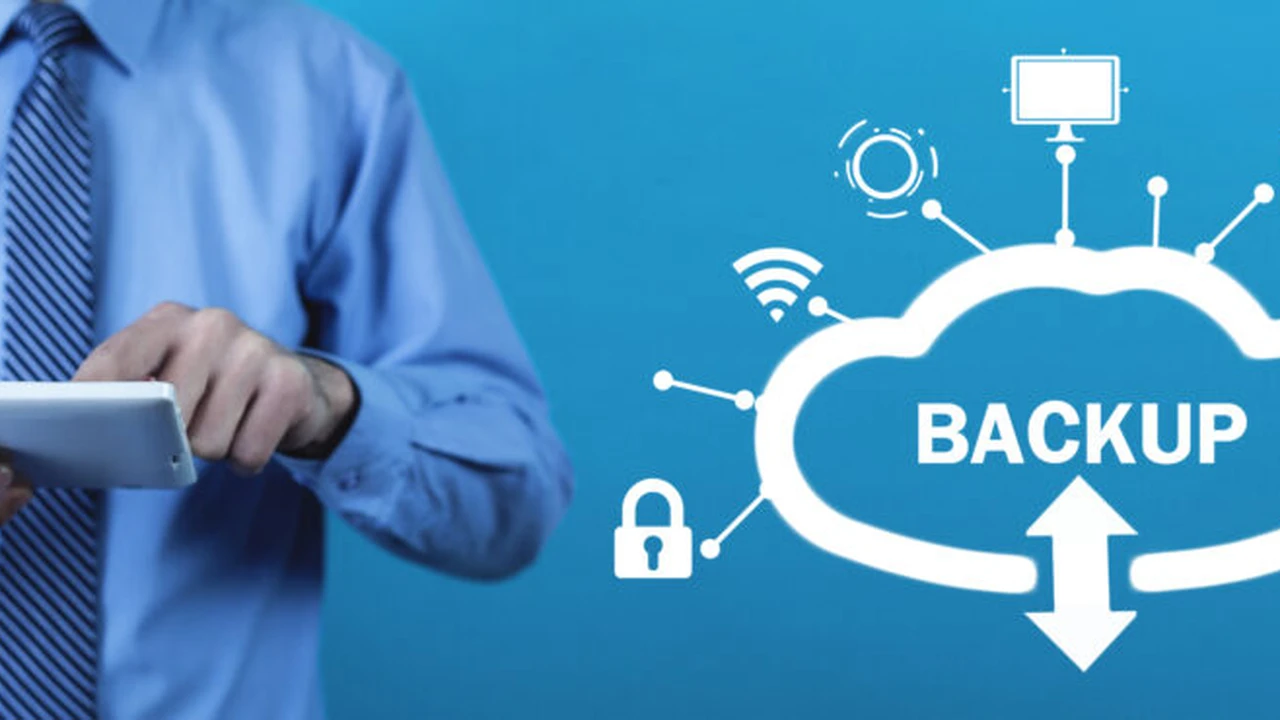
Discover reliable data backup solutions to protect your important files from loss or corruption. Losing precious photos, important documents, or critical work files can be a nightmare. Whether it's due to a hard drive crash, accidental deletion, a nasty virus, or even a natural disaster, data loss is a very real and often devastating possibility. That's why having a robust data backup strategy is not just a good idea, it's an absolute necessity in our digital age. Think of it as an insurance policy for your digital life.
Data Backup Solutions The 3 Best for Personal Use
In this comprehensive guide, we're going to dive deep into the world of personal data backup. We'll explore why backing up your data is so crucial, the different types of backup strategies available, and then we'll highlight the three best data backup solutions for personal use, complete with product recommendations, use cases, comparisons, and pricing details. By the end of this article, you'll have all the information you need to choose the perfect backup solution to safeguard your digital memories and important files.
Why Data Backup is Essential Protecting Your Digital Life
Let's face it, we live in a digital world. From family photos and videos to tax documents, work projects, and creative endeavors, a significant portion of our lives now exists in digital format. Imagine waking up one day to find all of it gone. The thought alone is enough to send shivers down your spine. Here's why data backup isn't just a suggestion, but a fundamental pillar of digital responsibility:
Common Causes of Data Loss Understanding the Risks
- Hardware Failure: Hard drives, SSDs, and other storage devices have a finite lifespan. They can fail without warning, taking all your data with them.
- Accidental Deletion: We've all been there – a momentary lapse of concentration and a crucial file is sent to the Recycle Bin, or worse, permanently deleted.
- Malware and Viruses: Ransomware, in particular, can encrypt your files and demand payment, or simply corrupt them beyond recovery.
- Theft or Loss: Laptops, smartphones, and external drives can be stolen or misplaced, leading to immediate data loss.
- Natural Disasters: Fires, floods, and other unforeseen events can destroy physical devices, making off-site backups critical.
- Software Corruption: Operating system errors or application glitches can sometimes lead to data corruption.
The Peace of Mind Factor Beyond Just Files
Beyond simply recovering files, having a reliable backup provides immense peace of mind. Knowing that your irreplaceable photos, important financial records, and years of creative work are safe and sound, no matter what happens to your primary device, is invaluable. It allows you to focus on creating, working, and living, without the constant worry of potential data catastrophe.
Understanding Backup Strategies Different Approaches to Data Protection
Before we dive into specific products, it's important to understand the different philosophies behind data backup. Not all backups are created equal, and the best strategy often involves a combination of approaches.
The 3-2-1 Backup Rule A Golden Standard for Data Security
The 3-2-1 rule is widely considered the gold standard for personal and small business data backup. It's simple, effective, and provides excellent redundancy:
- 3 Copies of Your Data: Always keep at least three copies of your data. This includes your primary data (on your computer) and two backups.
- 2 Different Media Types: Store your backups on at least two different types of storage media. For example, your computer's internal drive, an external hard drive, and cloud storage. This protects against a single type of media failure.
- 1 Off-site Copy: Keep at least one copy of your backup off-site. This protects against local disasters like fire, flood, or theft that could destroy all your local copies.
Full Incremental and Differential Backups Optimizing Storage and Time
- Full Backup: A full backup copies all selected data. It's the most comprehensive but also takes the longest and uses the most storage space.
- Incremental Backup: After an initial full backup, an incremental backup only copies data that has changed since the last backup of any type (full or incremental). This is fast and uses minimal storage, but restoration can be complex as it requires the full backup and all subsequent incremental backups.
- Differential Backup: After an initial full backup, a differential backup copies all data that has changed since the last full backup. This uses more space than incremental backups but is faster to restore, as it only requires the full backup and the latest differential backup.
The 3 Best Data Backup Solutions for Personal Use Comprehensive Review
Now, let's get to the core of it. Based on ease of use, reliability, features, and cost-effectiveness, here are our top three recommendations for personal data backup solutions.
1. Cloud Storage Services The Ultimate Off-site Backup Solution
Cloud storage services offer the convenience of automatic, off-site backups, accessible from anywhere with an internet connection. They are ideal for adhering to the '1 off-site copy' rule of the 3-2-1 strategy.
Key Features and Benefits of Cloud Backup for Personal Data
- Automatic Backups: Once set up, backups often run in the background without manual intervention.
- Off-site Storage: Your data is stored securely in remote data centers, protecting it from local disasters.
- Accessibility: Access your files from any device, anywhere, anytime.
- Version History: Most services keep multiple versions of your files, allowing you to revert to previous states if needed.
- Scalability: Easily upgrade your storage plan as your data grows.
Recommended Cloud Backup Products for Personal Users
A. Backblaze B2 Cloud Storage Affordable and Flexible
Backblaze B2 Cloud Storage is a fantastic option for those who want robust, affordable cloud storage that can be integrated with various backup software. While Backblaze Personal Backup offers unlimited storage for a single computer, B2 is more flexible for backing up multiple devices, network-attached storage (NAS), or specific folders.
Use Cases for Backblaze B2 Cloud Storage
- Large Data Sets: Ideal for photographers, videographers, or anyone with terabytes of data.
- NAS Backup: Many NAS devices have built-in integration with B2 for direct cloud backups.
- Archival Storage: A cost-effective solution for long-term archival of less frequently accessed data.
- Integration with Third-Party Software: Works seamlessly with popular backup tools like Duplicacy, CloudBerry Backup, and GoodSync for advanced control.
Pricing for Backblaze B2 Cloud Storage
- Storage: $0.005/GB per month (first 10GB free). This is incredibly competitive.
- Downloads: $0.01/GB (first 1GB free per day).
- Transactions: Free for uploads, small fees for downloads/API calls.
Pros and Cons of Backblaze B2 Cloud Storage
- Pros: Extremely affordable, highly reliable, excellent for large data volumes, flexible integration.
- Cons: Requires a bit more technical know-how than a simple 'set it and forget it' solution if not using their Personal Backup, download costs can add up if you frequently restore large amounts of data.
B. IDrive Comprehensive Cloud Backup for Multiple Devices
IDrive stands out for its ability to back up multiple devices (PCs, Macs, iPhones, Androids, NAS, external drives) into a single account. It offers a good balance of features, ease of use, and competitive pricing.
Use Cases for IDrive Cloud Backup
- Family Backup: Perfect for households with multiple computers and mobile devices that need to be backed up under one plan.
- Hybrid Backup: Offers both cloud backup and local backup options within the same software.
- Server Backup: Supports server backup for small business users, making it versatile.
- Disk Image Backup: Can create a complete image of your hard drive for bare-metal recovery.
Pricing for IDrive Cloud Backup
- IDrive Personal: 5 TB for $69.50/year (first year often discounted), 10 TB for $99.50/year.
- IDrive Business: Higher tiers available with more storage and features.
Pros and Cons of IDrive Cloud Backup
- Pros: Backs up unlimited devices, good value for money, hybrid backup options, strong security features (private encryption key).
- Cons: Interface can feel a bit dated, initial backup can be slow for very large data sets, some users report slower restore speeds compared to competitors.
C. Google Drive Microsoft OneDrive Apple iCloud Integrated Ecosystems
While primarily file synchronization services, Google Drive, Microsoft OneDrive, and Apple iCloud also serve as excellent cloud backup solutions, especially for users already embedded in their respective ecosystems.
Use Cases for Integrated Cloud Storage
- Ecosystem Users: Best for those who heavily use Google, Microsoft, or Apple products and want seamless integration.
- Document and Photo Sync: Excellent for keeping documents and photos synced across devices and backed up to the cloud.
- Collaboration: Built-in collaboration features for shared documents and projects.
- Mobile Device Backup: Automatically backs up photos, videos, and app data from smartphones.
Pricing for Integrated Cloud Storage
- Google Drive (Google One): 15 GB free, 100 GB for $1.99/month, 200 GB for $2.99/month, 2 TB for $9.99/month.
- Microsoft OneDrive: 5 GB free, 100 GB for $1.99/month, 1 TB included with Microsoft 365 Personal ($6.99/month).
- Apple iCloud: 5 GB free, 50 GB for $0.99/month, 200 GB for $2.99/month, 2 TB for $9.99/month.
Pros and Cons of Integrated Cloud Storage
- Pros: Deep integration with operating systems and productivity suites, easy to use, excellent for syncing, often includes other perks (e.g., Microsoft 365 apps).
- Cons: Can be more expensive per GB than dedicated backup services for large amounts of data, primarily designed for sync rather than comprehensive system backup, less robust versioning than dedicated backup solutions.
2. External Hard Drives and SSDs Reliable Local Backup Solutions
External hard drives (HDDs) and solid-state drives (SSDs) are the backbone of local backup strategies. They are fast, relatively inexpensive per gigabyte (especially HDDs), and provide a quick way to restore data.
Key Features and Benefits of External Drives for Data Backup
- Speed: Much faster for initial backups and restores compared to internet-based cloud solutions.
- Cost-Effective: High storage capacity for a relatively low one-time cost.
- No Internet Required: Backups and restores can be done offline.
- Full System Backups: Excellent for creating bootable clones or full system images.
Recommended External Drive Products for Personal Users
A. Western Digital My Passport Ultra Portable and Secure
The WD My Passport series is a perennial favorite for personal backups due to its portability, reliability, and included backup software.
Use Cases for WD My Passport Ultra
- On-the-Go Backup: Perfect for backing up laptops while traveling or working remotely.
- Regular Local Backups: Easy to plug in and run scheduled backups of documents, photos, and media.
- Bootable Clones: Can be used with third-party software to create a bootable clone of your system drive.
Pricing for WD My Passport Ultra
- 1TB: ~$60-$70
- 2TB: ~$80-$90
- 4TB: ~$110-$130
- 5TB: ~$130-$150
Pros and Cons of WD My Passport Ultra
- Pros: Compact, USB 3.0/3.2 for fast transfers, includes WD Backup software, hardware encryption available, good value.
- Cons: Mechanical drive (HDD) so susceptible to physical shock, not as fast as an SSD, requires manual connection for backups.
B. Samsung T7 Shield Portable SSD Rugged and Blazing Fast
For those who prioritize speed and durability, the Samsung T7 Shield Portable SSD is an excellent choice. It's ruggedized to withstand drops and water, making it ideal for active users.
Use Cases for Samsung T7 Shield Portable SSD
- Fast Backups: Ideal for backing up large video files, game libraries, or frequently updated project files where speed is critical.
- Field Work: Perfect for photographers or videographers who need to back up data on location.
- Bootable OS: Can run a portable operating system or be used for quick system restores.
Pricing for Samsung T7 Shield Portable SSD
- 1TB: ~$100-$120
- 2TB: ~$180-$200
- 4TB: ~$300-$350
Pros and Cons of Samsung T7 Shield Portable SSD
- Pros: Extremely fast (USB 3.2 Gen 2), durable and ruggedized, compact, hardware encryption, no moving parts.
- Cons: More expensive per gigabyte than HDDs, capacities typically lower than HDDs at similar price points.
C. Seagate Expansion Desktop Hard Drive High Capacity for Home Use
For stationary home use where portability isn't a concern, a desktop external hard drive like the Seagate Expansion offers massive storage at a very attractive price point.
Use Cases for Seagate Expansion Desktop Hard Drive
- Archival Storage: Excellent for archiving entire photo and video collections, old projects, or large media libraries.
- Primary Local Backup: Can serve as the main local backup for a desktop computer or multiple family computers.
- Media Server Storage: Suitable for storing media files for a home media server.
Pricing for Seagate Expansion Desktop Hard Drive
- 8TB: ~$150-$170
- 10TB: ~$180-$200
- 16TB: ~$280-$320
Pros and Cons of Seagate Expansion Desktop Hard Drive
- Pros: Very high capacity, excellent value per gigabyte, reliable for stationary use.
- Cons: Requires external power, not portable, mechanical drive (HDD) so slower than SSDs.
3. Network Attached Storage NAS Advanced Home Backup and Media Server
Network Attached Storage (NAS) devices are essentially mini-servers with multiple hard drives that connect to your home network. They offer centralized storage, advanced backup features, and can serve as a personal cloud.
Key Features and Benefits of NAS for Data Management
- Centralized Storage: All your family's data in one accessible location.
- Redundancy (RAID): Most NAS devices support RAID configurations (e.g., RAID 1, RAID 5) which protect against single drive failure.
- Automatic Backups: Can be configured to automatically back up multiple computers on your network.
- Personal Cloud: Access your files remotely without relying on third-party cloud services.
- Media Server: Excellent for streaming movies, music, and photos to smart TVs, phones, and tablets.
- Scalability: Easily add more storage by upgrading hard drives.
Recommended NAS Products for Personal and Home Office Users
A. Synology DiskStation DS224+ User-Friendly and Feature-Rich
Synology is a leader in the NAS market, known for its intuitive DiskStation Manager (DSM) operating system and robust feature set. The DS224+ is a great entry point for home users.
Use Cases for Synology DiskStation DS224+
- Family Photo and Video Archive: Centralize and organize all family media.
- Multi-Computer Backup: Back up all PCs and Macs in the household automatically.
- Personal Cloud: Create your own private cloud for remote file access.
- Media Streaming: Stream content to various devices around the house.
- Surveillance Station: Can be used as a network video recorder (NVR) for IP cameras.
Pricing for Synology DiskStation DS224+
- NAS Enclosure (Diskless): ~$300-$350 (you need to buy hard drives separately).
- Hard Drives: Varies greatly, e.g., 2x 4TB NAS drives ~$200-$250.
Pros and Cons of Synology DiskStation DS224+
- Pros: Excellent software (DSM), easy to use, robust features, good performance, strong community support.
- Cons: Higher initial cost (enclosure + drives), requires some setup, power consumption (though low for a server).
B. QNAP TS-264 Powerful and Versatile for Prosumers
QNAP is another top-tier NAS brand, often appealing to users who want more raw power and advanced features. The TS-264 is a powerful 2-bay option.
Use Cases for QNAP TS-264
- Virtualization: Can run virtual machines and containers for advanced users.
- High-Performance Media Server: Excellent for 4K transcoding and streaming.
- Advanced Data Management: More granular control over file systems and network settings.
- Small Business Use: Suitable for small office environments requiring robust data storage and sharing.
Pricing for QNAP TS-264
- NAS Enclosure (Diskless): ~$450-$500 (you need to buy hard drives separately).
- Hard Drives: Varies, e.g., 2x 4TB NAS drives ~$200-$250.
Pros and Cons of QNAP TS-264
- Pros: Powerful hardware, extensive features, good for advanced users and prosumers, excellent media capabilities.
- Cons: Steeper learning curve than Synology for some features, higher price point, software can feel less polished than DSM for beginners.
Implementing Your Backup Strategy Combining Solutions for Maximum Protection
The best backup strategy often involves combining these solutions to adhere to the 3-2-1 rule. Here's how you might do it:
Scenario 1 Basic Home User Protecting Photos and Documents
- Primary Data: On your computer's internal drive.
- Backup 1 (Local): An external hard drive (e.g., WD My Passport) for regular, scheduled backups.
- Backup 2 (Off-site): A cloud storage service (e.g., IDrive Personal or Google Drive) for automatic, off-site synchronization of critical files.
Scenario 2 Prosumer with Large Media Library and Multiple Devices
- Primary Data: On your computer's internal drive and potentially a fast external SSD for active projects.
- Backup 1 (Local & Centralized): A NAS device (e.g., Synology DS224+) with RAID for centralized storage and automatic backups of all home computers.
- Backup 2 (Off-site): Backblaze B2 Cloud Storage integrated with your NAS for off-site archival of the most critical data from the NAS.
Key Considerations When Choosing Your Backup Solution Making the Right Choice
Before making a final decision, consider these factors:
Budget and Cost Per Gigabyte Balancing Price and Performance
Cloud services have ongoing subscription costs, while external drives and NAS have higher upfront costs but no recurring fees (unless you add cloud backup to your NAS). Calculate the total cost of ownership over several years.
Ease of Use and Setup User Experience Matters
How comfortable are you with technology? Some solutions are plug-and-play, while others require more technical configuration. Choose a solution you'll actually use consistently.
Storage Capacity and Scalability Future Proofing Your Data
How much data do you have now, and how much do you expect to have in the future? Ensure your chosen solution can grow with your needs.
Backup Speed and Restore Time Quick Recovery is Key
How quickly do you need to back up your data, and more importantly, how quickly can you restore it in an emergency? Local backups are generally faster for both.
Security and Encryption Protecting Your Privacy
Look for solutions that offer strong encryption (both in transit and at rest) and ideally, the option for a private encryption key (zero-knowledge encryption) for cloud services.
Version History and File Recovery Going Back in Time
How many previous versions of your files does the service keep? This is crucial for recovering from accidental saves or ransomware attacks.
Customer Support and Reliability Getting Help When You Need It
Check reviews for customer support quality and the overall reliability of the service or hardware.
Final Thoughts on Personal Data Backup Your Data Your Responsibility
Data backup isn't a one-time task; it's an ongoing process. Set it up, test it periodically, and ensure it's working as expected. Your digital life is precious, and taking the time to implement a solid backup strategy is one of the smartest investments you can make. Don't wait until disaster strikes to realize the importance of your data. Start backing up today!
:max_bytes(150000):strip_icc()/277019-baked-pork-chops-with-cream-of-mushroom-soup-DDMFS-beauty-4x3-BG-7505-5762b731cf30447d9cbbbbbf387beafa.jpg)