Browser Extensions Safety Tips for Secure Browsing
Understand the risks of browser extensions and how to choose safe ones for enhanced security.
Understand the risks of browser extensions and how to choose safe ones for enhanced security.
Browser Extensions Safety Tips for Secure Browsing
Hey there, digital explorer! Ever found yourself browsing the web, and a little pop-up suggests adding an extension to your browser? Maybe it promises to block ads, translate pages, or even help you save money. Browser extensions can be super handy, transforming your web browser from a simple window to the internet into a powerful, personalized tool. But here's the thing: just like any tool, they can also come with risks. Think of it like inviting someone into your home. You wouldn't just let anyone in, right? The same goes for browser extensions. They get a lot of access to what you do online, and if you're not careful, they can compromise your privacy and security.
In this deep dive, we're going to break down everything you need to know about browser extensions. We'll talk about the good, the bad, and the ugly, and most importantly, how you can use them safely and smartly. Whether you're using Chrome, Firefox, Edge, or Safari, these tips are going to help you navigate the world of extensions with confidence. So, let's get started and make your browsing experience not just better, but also much safer!
Understanding Browser Extensions What They Are and How They Work
First off, what exactly are browser extensions? In simple terms, they're small software programs that add new features or modify the way your web browser works. They can do a ton of different things: block annoying ads, manage your passwords, check your grammar, translate languages, or even give you quick access to your favorite apps. They're designed to enhance your browsing experience, making it more efficient, productive, or just plain fun.
How do they work? When you install an extension, you're essentially giving it permission to interact with your browser and, often, the websites you visit. This interaction can range from reading and changing data on web pages to accessing your browsing history, managing your downloads, or even communicating with external servers. The level of access an extension requests is crucial, and it's something we'll definitely be focusing on.
Most popular browsers like Google Chrome, Mozilla Firefox, Microsoft Edge, and Apple Safari have their own official stores or marketplaces where you can find and install extensions. These stores usually have some level of review process, but it's not foolproof. Third-party websites also offer extensions, but these are generally riskier and should be approached with extreme caution.
The Good The Benefits of Smart Browser Extension Use
When chosen wisely, browser extensions can be incredibly beneficial. They can seriously boost your productivity, enhance your privacy, and even make the internet a more pleasant place to be. Let's look at some common and highly useful types of extensions:
Productivity Enhancers Boosting Your Workflow
- Grammar and Spelling Checkers: Tools like Grammarly or LanguageTool can help you write better emails, reports, and social media posts by catching errors in real-time.
- Note-Taking and Clipping Tools: Extensions like Evernote Web Clipper or OneNote Web Clipper allow you to save articles, images, and entire web pages directly to your note-taking app for later reference.
- Tab Managers: If you're like me and often have dozens of tabs open, extensions like OneTab or The Great Suspender (use with caution, as some versions have had issues) can help you organize, save, and manage your tabs, reducing browser clutter and memory usage.
- Time Management Tools: Focus-enhancing extensions like Forest or StayFocusd can help you block distracting websites during work hours, keeping you on task.
Privacy and Security Boosters Protecting Your Digital Footprint
- Ad Blockers: Extensions like uBlock Origin or AdBlock Plus (though uBlock Origin is generally preferred for its efficiency and open-source nature) block intrusive ads, pop-ups, and trackers, making your browsing faster and more private.
- Password Managers: LastPass, 1Password, Bitwarden, and Dashlane offer browser extensions that securely store your passwords, generate strong new ones, and auto-fill login forms, significantly improving your online security.
- Privacy Tools: Extensions like Privacy Badger or Ghostery detect and block invisible trackers that follow you across the web, giving you more control over your data.
- HTTPS Everywhere: This extension from the Electronic Frontier Foundation (EFF) automatically encrypts your communication with many websites, protecting you from surveillance and data tampering.
Convenience and Accessibility Making the Web Easier
- Translator Extensions: Google Translate or DeepL can instantly translate web pages or selected text, breaking down language barriers.
- Dark Mode Extensions: For those late-night browsing sessions, extensions like Dark Reader can apply a dark theme to almost any website, reducing eye strain.
- Price Comparison Tools: Honey or CamelCamelCamel can help you find the best deals and track price history when shopping online.
The Bad and The Ugly The Risks and Dangers of Malicious Extensions
Now for the less fun part. While many extensions are legitimate and helpful, a significant number can pose serious risks to your privacy and security. These risks often stem from the extensive permissions extensions request.
Data Collection and Privacy Invasion Understanding Permissions
This is perhaps the biggest concern. Many extensions, even seemingly innocent ones, request broad permissions that allow them to:
- Read and change all your data on websites you visit: This is a huge one. It means the extension can see everything you type, every page you visit, and potentially even modify content on those pages. Imagine a malicious extension injecting ads or redirecting you to phishing sites.
- Access your browsing history: They can track every website you've ever visited.
- Manage your downloads: They could potentially intercept or modify files you download.
- Access your tabs and browsing activity: They can see what tabs you have open and what you're doing in them.
Legitimate extensions often need some of these permissions to function. For example, an ad blocker needs to 'read and change data' to block ads. A password manager needs to 'read and change data' to auto-fill login forms. The key is to scrutinize why an extension needs certain permissions. Does a simple calculator extension really need to 'read and change all your data on websites'? Probably not.
Malware and Adware Injections Protecting Against Unwanted Software
Malicious extensions can:
- Inject unwanted ads: Even if you have an ad blocker, a rogue extension can bypass it and flood your browser with pop-ups and banners, often leading to shady websites.
- Redirect your searches: They might hijack your search engine, sending you to a different, often less secure, search provider that profits from your clicks.
- Install other malware: Some extensions act as a gateway for more serious malware, downloading and installing it onto your computer without your knowledge.
- Mine cryptocurrency: Your computer's resources could be secretly used to mine cryptocurrency, slowing down your system and increasing your electricity bill.
Phishing and Credential Theft Safeguarding Your Accounts
Some extensions are designed specifically to steal your login credentials. They might:
- Create fake login pages: When you visit a banking or social media site, the extension might overlay a fake login form that looks identical to the real one, capturing your username and password.
- Log keystrokes: A keylogger extension can record everything you type, including passwords, credit card numbers, and personal messages.
Performance Issues and Browser Instability Optimizing Your Experience
Even non-malicious extensions can cause problems:
- Slow down your browser: Too many extensions, or poorly coded ones, can consume significant system resources, making your browser sluggish and unresponsive.
- Cause crashes: Conflicts between extensions or bugs in their code can lead to browser crashes and data loss.
- Break website functionality: Some extensions might interfere with how websites load or function, leading to broken layouts or features.
Choosing Safe Browser Extensions A Step by Step Guide
So, how do you enjoy the benefits of extensions without falling victim to the risks? It all comes down to being smart and vigilant. Here's a step-by-step guide:
1. Stick to Official Stores Prioritizing Trustworthy Sources
Always download extensions from the official stores for your browser:
- Chrome Web Store for Google Chrome
- Firefox Add-ons for Mozilla Firefox
- Microsoft Edge Add-ons for Microsoft Edge
- Safari Extensions (available through the App Store) for Apple Safari
These stores have some level of vetting, though it's not perfect. Avoid downloading extensions from third-party websites, as these are often unregulated and much more likely to contain malware.
2. Read Reviews and Check Ratings Community Feedback Matters
Before installing any extension, take a few minutes to:
- Check the average rating: Look for extensions with high ratings (4 stars and above) and a significant number of reviews.
- Read recent reviews: Pay attention to what users are saying. Are there complaints about privacy issues, performance problems, or unexpected behavior? Be wary of extensions with many generic, overly positive reviews that sound fake.
- Look for red flags: If users report that the extension started showing ads, changing their homepage, or redirecting searches, steer clear.
3. Scrutinize Permissions Understanding What You're Granting
This is arguably the most critical step. When you install an extension, your browser will show you a list of permissions it's requesting. Read these carefully!
- Question broad permissions: Does a simple weather extension really need to 'read and change all your data on websites you visit'? Probably not.
- Match permissions to functionality: Ensure the requested permissions align with the extension's stated purpose. A password manager needs access to forms, an ad blocker needs to modify web content.
- Be wary of 'access your data on all websites': This is the most powerful permission and should only be granted to extensions you absolutely trust and whose functionality genuinely requires it (e.g., ad blockers, password managers).
4. Check the Developer Information Trusting the Source
Look for information about the developer:
- Reputable developers: Is it from a well-known company or a developer with a good track record?
- Website and contact info: Does the developer have a legitimate website and clear contact information? A lack of transparency is a major red flag.
- Privacy policy: Does the developer have a clear and easy-to-understand privacy policy that explains how they handle your data?
5. Consider the Number of Users Popularity as an Indicator
Extensions with a large number of active users (millions, for popular categories) are generally more trustworthy. This isn't a foolproof indicator, as even popular extensions can be bought out and turned malicious, but it suggests a certain level of community scrutiny over time.
6. Look for Recent Updates and Support Active Maintenance is Key
A well-maintained extension is a good sign:
- Last updated date: Has the extension been updated recently? Developers who actively maintain their extensions are more likely to fix bugs and address security vulnerabilities.
- Support: Is there an active support forum or contact method? Responsive developers are a good sign.
7. Use a Minimalist Approach Less is More for Security
Resist the urge to install every cool-looking extension. The more extensions you have, the larger your attack surface and the higher the chance of performance issues or conflicts. Only install extensions you genuinely need and use regularly.
Recommended Secure Browser Extensions for US and SEA Users
To give you a head start, here are some highly-regarded and generally safe browser extensions that can significantly enhance your privacy and security, with considerations for users in the US and Southeast Asia:
Password Managers Essential for Account Security
These are non-negotiable for strong online security. They generate, store, and auto-fill complex passwords, reducing your risk of credential theft.
- Bitwarden:
- Description: An open-source, cross-platform password manager that offers excellent security and a generous free tier. It's highly respected in the security community.
- Key Features: Strong encryption, two-factor authentication (2FA) support, password generator, secure notes, identity storage, self-hosting option.
- Use Case: Ideal for individuals and small teams looking for a robust, free, and open-source solution. Its open-source nature means its code is publicly auditable, increasing trust.
- Comparison: More affordable than LastPass or 1Password, especially for premium features. Its open-source nature is a big plus for privacy advocates.
- Pricing: Free for basic personal use. Premium features (like advanced 2FA, file attachments) start at around $10/year. Family plans available.
- 1Password:
- Description: A premium password manager known for its user-friendly interface and strong security features.
- Key Features: Travel Mode (removes sensitive data from devices when crossing borders), Watchtower (alerts you to vulnerable passwords), secure sharing, excellent mobile apps.
- Use Case: Great for individuals and families who want a polished, feature-rich experience and are willing to pay for it.
- Comparison: Often considered more user-friendly than Bitwarden for beginners, with a slightly more extensive feature set for families and businesses.
- Pricing: Starts at $2.99/month (billed annually) for individuals. Family plans available.
- LastPass:
- Description: A very popular password manager with a long history. Offers a good balance of features and ease of use.
- Key Features: Password vault, auto-fill, password generator, secure notes, digital wallet.
- Use Case: Suitable for users who want a widely recognized and feature-rich password manager.
- Comparison: Its free tier recently became more restrictive (only one device type), pushing many users towards Bitwarden or 1Password for multi-device sync.
- Pricing: Free for one device type. Premium starts at $3/month (billed annually).
Ad Blockers and Privacy Tools Reclaiming Your Browsing Experience
These extensions block intrusive ads and trackers, improving page load times and protecting your privacy.
- uBlock Origin:
- Description: A highly efficient and effective open-source ad blocker that also blocks trackers and malware domains. It's known for its low resource usage.
- Key Features: Blocks ads, trackers, malware, customizable filter lists, element picker for manual blocking.
- Use Case: The go-to choice for anyone wanting a powerful, lightweight, and privacy-focused ad blocker.
- Comparison: Generally considered superior to AdBlock Plus due to its efficiency and focus on blocking rather than allowing 'acceptable ads.'
- Pricing: Free.
- Privacy Badger (from EFF):
- Description: Automatically learns to block invisible trackers that follow you across the web. It doesn't rely on blocklists but rather on detecting tracking behavior.
- Key Features: Learns and blocks trackers, sends Do Not Track signals, visualizes blocked trackers.
- Use Case: Excellent for users who want an intelligent, adaptive tracker blocker that works alongside an ad blocker.
- Comparison: Complements ad blockers like uBlock Origin by focusing specifically on behavioral tracking.
- Pricing: Free.
- HTTPS Everywhere (from EFF):
- Description: Automatically rewrites requests to many websites from HTTP to HTTPS, ensuring your connection is encrypted whenever possible.
- Key Features: Forces HTTPS connections, protects against surveillance and data tampering.
- Use Case: Essential for ensuring secure communication, especially on public Wi-Fi.
- Comparison: While modern browsers increasingly default to HTTPS, this extension provides an extra layer of assurance for older or less secure sites.
- Pricing: Free.
VPN Browser Extensions Enhancing Location Privacy
While a full VPN application is generally more secure, browser extensions can offer quick, convenient protection for specific browser traffic.
- NordVPN Browser Extension:
- Description: A companion to the full NordVPN service, offering quick access to VPN servers directly from your browser. Encrypts browser traffic only.
- Key Features: Quick connect, ad blocker (Threat Protection Lite), WebRTC leak protection, split tunneling (for browser traffic).
- Use Case: For users who already subscribe to NordVPN and want to quickly secure their browser traffic without routing all device traffic through the VPN. Useful for accessing geo-restricted content or adding a layer of privacy to browsing.
- Comparison: Only encrypts browser traffic, unlike the full VPN app which protects all internet traffic on your device.
- Pricing: Requires a NordVPN subscription (starts around $3.49/month for a 2-year plan).
- ExpressVPN Browser Extension:
- Description: Similar to NordVPN's, this extension acts as a remote control for the ExpressVPN desktop app, allowing you to manage your VPN connection directly from your browser.
- Key Features: Connect/disconnect, choose server locations, WebRTC leak blocking, HTTPS Everywhere integration.
- Use Case: Best for existing ExpressVPN subscribers who want seamless control over their VPN from the browser.
- Comparison: Unlike some other VPN extensions, ExpressVPN's extension requires the desktop app to be running, meaning it secures all traffic, not just browser traffic. This is a more secure approach.
- Pricing: Requires an ExpressVPN subscription (starts around $6.67/month for a 1-year plan).
Other Useful Privacy-Focused Extensions
- Decentraleyes:
- Description: Protects you against tracking by content delivery networks (CDNs). It intercepts requests for common libraries (like jQuery, Bootstrap) and serves them locally, preventing CDNs from tracking your visits.
- Key Features: Local CDN emulation, reduces tracking, improves page load times.
- Use Case: For privacy-conscious users who want to reduce their reliance on third-party CDNs.
- Pricing: Free.
- NoScript (Firefox only) / ScriptSafe (Chrome):
- Description: These extensions block JavaScript, Java, Flash, and other executable content by default, only allowing it to run on sites you explicitly trust. This significantly reduces your attack surface but can break many websites.
- Key Features: Blocks scripts, whitelisting functionality, enhanced security.
- Use Case: Advanced users who prioritize security above all else and are willing to deal with potential website breakage. Not for the faint of heart!
- Pricing: Free.
Managing Your Extensions Regularly Review and Maintain
Installing extensions isn't a one-and-done deal. Regular maintenance is crucial for ongoing security and performance.
Regular Audits What to Look For
Make it a habit to review your installed extensions every few months:
- Remove unused extensions: If you haven't used an extension in a while, uninstall it. Every installed extension is a potential security risk and can consume resources.
- Check permissions again: Sometimes, extensions update and request new permissions. Be aware of these changes.
- Look for suspicious behavior: Is your browser acting strangely? Are you seeing unexpected pop-ups or redirects? An extension could be the culprit.
Keep Extensions Updated Staying Ahead of Vulnerabilities
Just like your browser and operating system, extensions receive updates to fix bugs, add features, and patch security vulnerabilities. Ensure your browser is set to automatically update extensions, or manually check for updates regularly.
Disable vs Uninstall When to Do What
- Disable: If you use an extension only occasionally, you can disable it and re-enable it when needed. This prevents it from running in the background and consuming resources or potentially posing a security risk when not in use.
- Uninstall: If you no longer need an extension, uninstall it completely. This removes its code from your browser and eliminates any potential risks.
Browser Specific Considerations Chrome Firefox Edge Safari
While the general principles apply to all browsers, there are some nuances:
Google Chrome The Most Popular but Resource-Intensive
- Vast Extension Library: Chrome has the largest selection of extensions, but this also means more potential for malicious ones.
- Resource Usage: Chrome extensions can be resource-intensive. Be mindful of how many you install to avoid slowing down your computer.
- Manifest V3: Google is transitioning to Manifest V3 for extensions, which will change how some extensions (especially ad blockers) work. Keep an eye on how this impacts your favorite tools.
Mozilla Firefox Privacy-Focused and Open Source
- Strong Privacy Stance: Firefox generally has a stronger focus on user privacy by default and in its extension ecosystem.
- WebExtensions API: Firefox uses a similar API to Chrome, making many extensions compatible across both browsers.
- Recommended for Privacy: Often recommended for users who prioritize privacy and open-source software.
Microsoft Edge Chromium-Based and Improving
- Chrome Web Store Compatibility: Since Edge is now based on Chromium, it can install extensions directly from the Chrome Web Store, giving it a huge library.
- Microsoft Store: It also has its own add-on store, which is generally well-curated.
- Performance: Edge is often praised for its performance and lower resource usage compared to Chrome.
Apple Safari Integrated and Curated
- App Store Integration: Safari extensions are distributed through the Mac App Store, which has a stricter review process than other browser stores.
- Limited Selection: The selection of Safari extensions is generally smaller compared to Chrome or Firefox.
- Performance and Privacy: Safari is known for its strong performance and built-in privacy features, which can reduce the need for as many extensions.
What to Do If You Suspect a Malicious Extension Immediate Actions
If you notice your browser acting strangely, or suspect an extension is malicious, act quickly:
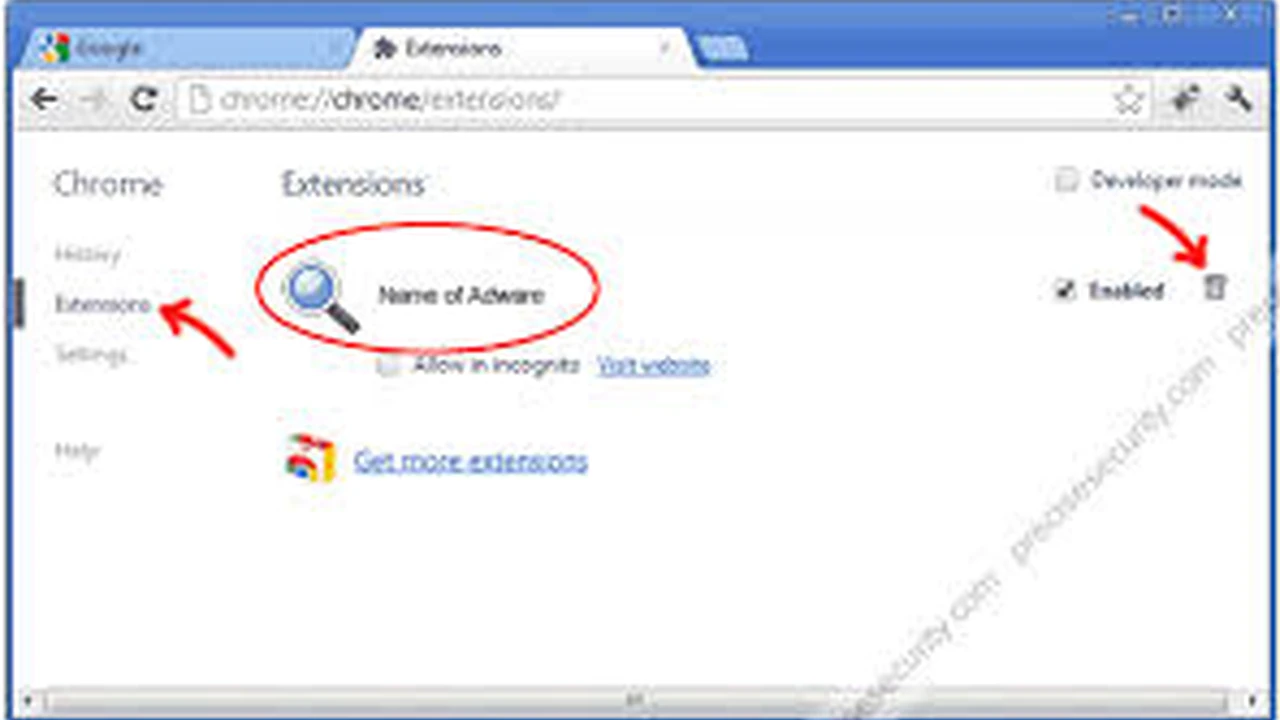
- Disable or Uninstall Immediately: Go to your browser's extension management page and disable or uninstall any suspicious extensions. If you're unsure, disable them one by one to see if the problem goes away.
- Run a Malware Scan: Use a reputable antivirus/anti-malware program (like Malwarebytes, Avast, or Windows Defender) to scan your entire computer.
- Change Important Passwords: Especially if you suspect a keylogger or credential theft, change passwords for your email, banking, and other critical accounts.
- Review Browser Settings: Check your browser's homepage, default search engine, and other settings to ensure they haven't been altered.
- Clear Browser Data: Clear your browser's cache, cookies, and browsing history.
- Report the Extension: If you found the extension in an official store, report it to the store administrators to help protect other users.
Browser extensions are powerful tools that can significantly enhance your online experience. But with great power comes great responsibility – your responsibility to choose them wisely and manage them carefully. By following these safety tips, scrutinizing permissions, and regularly reviewing your installed extensions, you can enjoy a more secure, private, and efficient browsing journey. Stay safe out there!
:max_bytes(150000):strip_icc()/277019-baked-pork-chops-with-cream-of-mushroom-soup-DDMFS-beauty-4x3-BG-7505-5762b731cf30447d9cbbbbbf387beafa.jpg)