Device Encryption Why It Matters and How to Do It
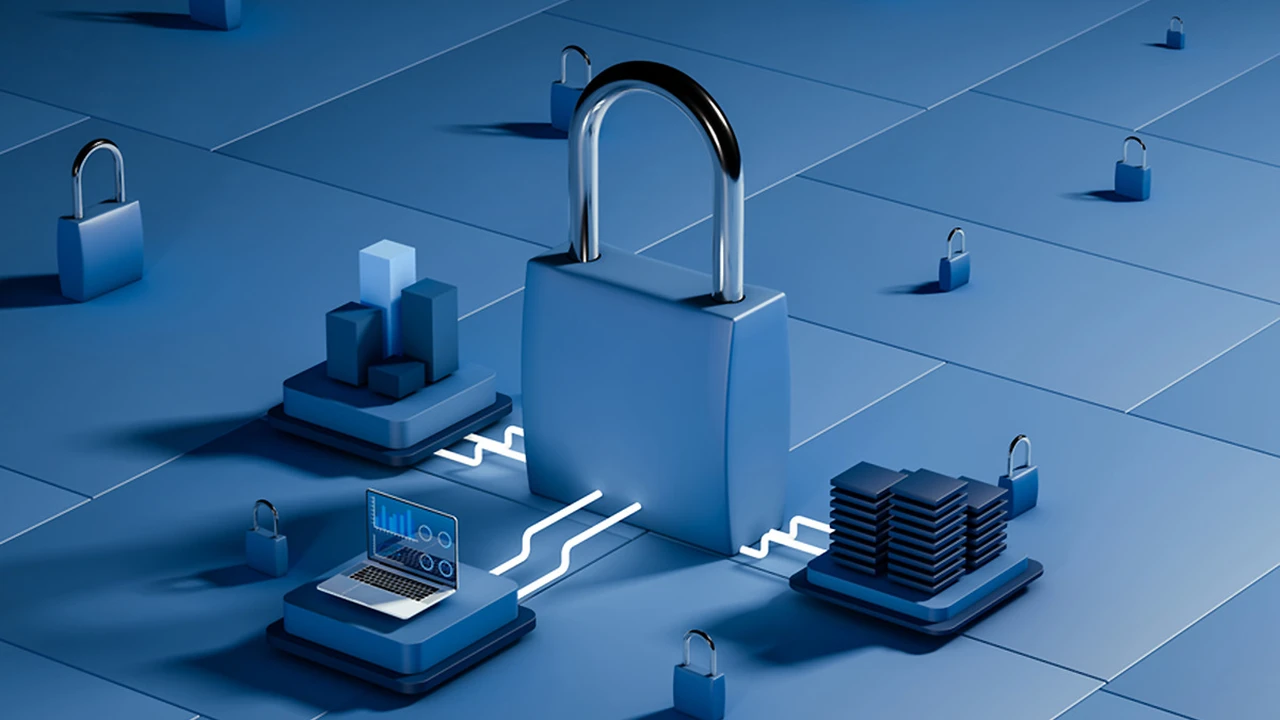
Learn about device encryption and its role in protecting your data if your device is lost or stolen.
Learn about device encryption and its role in protecting your data if your device is lost or stolen.
Device Encryption Why It Matters and How to Do It
Understanding Device Encryption Your First Line of Defense
Hey there! Let's talk about something super important for your digital life: device encryption. You might have heard the term floating around, but what exactly is it, and why should you care? Think of encryption as a secret code for your data. When your device is encrypted, all the information on it – your photos, documents, emails, banking details, everything – gets scrambled into an unreadable format. This scrambling happens automatically, and only someone with the correct key (usually your password or a specific decryption key) can unscramble it and access your data. Without that key, it's just a jumbled mess, completely useless to anyone trying to snoop.
So, why is this your first line of defense? Imagine you lose your laptop at a coffee shop, or your phone gets stolen. Without encryption, anyone who gets their hands on it can potentially access all your personal information. They could plug the hard drive into another computer, bypass your login screen, and boom – instant access to your entire digital life. With encryption, even if they manage to physically access the storage, all they'll see is gibberish. It's like having a locked safe, but instead of just locking the door, you've also turned everything inside into an indecipherable puzzle. This is especially crucial in today's world where so much of our lives are stored digitally. From personal memories to sensitive work documents, protecting this data is paramount.
Why Device Encryption is Crucial Protecting Your Personal Data and Privacy
The importance of device encryption really can't be overstated, especially when we consider the ever-growing threats to our digital privacy. Here’s a breakdown of why it’s not just a good idea, but an essential practice:
Safeguarding Against Theft and Loss Your Data's Last Stand
This is the most obvious and perhaps most common scenario. Your phone, laptop, or even an external hard drive goes missing. It happens. But the difference between a minor inconvenience and a major privacy nightmare often comes down to whether that device was encrypted. If it was, the thief or finder might have a new piece of hardware, but your data remains secure. If not, you're looking at potential identity theft, financial fraud, or the exposure of highly personal information. For businesses, a lost unencrypted device can lead to massive data breaches, regulatory fines, and reputational damage.
Preventing Unauthorized Access Even with Physical Possession
Even if someone gains physical access to your device, encryption acts as a powerful barrier. Without your password or decryption key, they can't simply boot up your operating system and start browsing your files. This is particularly important for devices that might be confiscated or inspected, offering a layer of protection against unwarranted surveillance.
Meeting Compliance and Regulatory Requirements Data Protection Standards
For many professionals and businesses, encryption isn't just a recommendation; it's a requirement. Regulations like GDPR, HIPAA, and CCPA often mandate robust data protection measures, and device encryption is a fundamental component of achieving compliance. Failing to encrypt sensitive data can result in hefty fines and legal repercussions.
Protecting Sensitive Information Financial, Medical, and Personal Records
Think about the sheer volume of sensitive information stored on your devices: bank account details, credit card numbers, medical records, social security numbers, private conversations, and intimate photos. All of this is incredibly valuable to cybercriminals. Encryption ensures that even if your device falls into the wrong hands, this sensitive data remains inaccessible and protected.
Types of Device Encryption Full Disk Encryption vs File Encryption
When we talk about device encryption, there are generally two main types you'll encounter:
Full Disk Encryption FDE Comprehensive Device Security
Full Disk Encryption (FDE) is exactly what it sounds like: it encrypts the entire storage drive of your device. This includes the operating system, applications, and all user data. When you turn on your computer or phone, the FDE system requires you to enter a password or PIN before the operating system even starts to load. This means that every single bit of data on the drive is encrypted, making it the most comprehensive form of device encryption. If someone tries to remove the drive and access it from another computer, they'll still be met with encrypted data.
Pros:
- Complete Protection: Encrypts everything on the drive.
- Automatic: Once set up, it usually works in the background without user intervention after initial unlock.
- Strong Security: Highly effective against physical theft and unauthorized access.
Cons:
- Performance Impact: Can sometimes slightly slow down older devices, though modern hardware often has dedicated encryption acceleration.
- Initial Setup: Can take some time for the initial encryption process.
File Encryption Selective Data Protection
File encryption, on the other hand, allows you to encrypt individual files or folders rather than the entire disk. This is useful if you only have specific sensitive documents you want to protect, or if you're sharing files and want to ensure they remain encrypted even after they leave your device. You might use this for a specific folder of financial records or a single highly confidential document.
Pros:
- Granular Control: You choose exactly what to encrypt.
- Flexibility: Can be used for specific sensitive data without encrypting the entire system.
- Easier Sharing: Encrypted files can be shared, and only the recipient with the key can open them.
Cons:
- Less Comprehensive: Doesn't protect the entire system or other unencrypted files.
- Manual Effort: Requires you to remember to encrypt specific files or folders.
How to Implement Device Encryption Step-by-Step Guides for Popular Devices
Good news! Most modern operating systems come with built-in encryption tools, making it relatively easy to secure your devices. Let's walk through how to enable it on some popular platforms.
Windows BitLocker Drive Encryption for PCs
BitLocker is Microsoft's full-disk encryption feature, available on Windows Pro, Enterprise, and Education editions. Some Windows Home versions might have a feature called 'Device Encryption' which is a simplified version of BitLocker, often enabled by default on new devices.
How to Enable BitLocker:
- Check Your Windows Version: Go to
Settings > System > About. Look for 'Edition'. If it's Pro, Enterprise, or Education, you have BitLocker. - Open BitLocker: Search for 'BitLocker' in the Windows search bar and select 'Manage BitLocker'.
- Turn On BitLocker: Click 'Turn on BitLocker' for the drive you want to encrypt (usually your C: drive).
- Choose How to Unlock: You'll typically be asked to choose how to unlock your drive at startup. The most common is 'Use a password to unlock the drive'.
- Save Your Recovery Key: This is CRUCIAL. If you forget your password or your hardware changes, this key is your only way to access your data. You can save it to your Microsoft account, print it, save it to a file, or save it to a USB flash drive. Choose at least two methods.
- Choose Encryption Mode: For new devices, 'New encryption mode (XTS-AES)' is recommended. For older devices or drives that might be moved between different Windows versions, 'Compatible mode' might be better.
- Choose How Much to Encrypt: 'Encrypt used disk space only' is faster for new drives. 'Encrypt entire drive' is more thorough and recommended for drives already containing data.
- Start Encryption: Click 'Start encrypting'. The process can take a while, depending on your drive size and data. You can usually continue using your computer during this time.
Recommended Product: BitLocker is built-in, so no extra purchase needed if you have the right Windows edition. For Windows Home users, check if 'Device Encryption' is enabled under Settings > Update & Security > Device encryption.
macOS FileVault 2 for Apple Devices
FileVault 2 is Apple's full-disk encryption solution for macOS, and it's highly recommended for all Mac users.
How to Enable FileVault 2:
- Open System Settings/Preferences: Click the Apple menu in the top-left corner, then select 'System Settings' (macOS Ventura or later) or 'System Preferences' (earlier macOS versions).
- Navigate to Privacy & Security: In System Settings, click 'Privacy & Security'. In System Preferences, click 'Security & Privacy'.
- Select FileVault: Click the 'FileVault' tab.
- Unlock to Make Changes: If the padlock icon in the bottom-left is locked, click it and enter your administrator password.
- Turn On FileVault: Click 'Turn On FileVault'.
- Choose Recovery Method: You'll be given two options for your recovery key: either store it with Apple (linked to your iCloud account) or create a local recovery key. It's generally recommended to create a local recovery key and store it in a very safe, offline place (like a physical safe or a secure password manager, but not on the Mac itself).
- Restart: Your Mac will restart to begin the encryption process. This can take some time, but you can continue using your Mac while it encrypts in the background.
Recommended Product: FileVault 2 is integrated into macOS, so it's free and optimized for Apple hardware.
Android Device Encryption for Smartphones and Tablets
Most modern Android devices (running Android 6.0 Marshmallow or later) come with encryption enabled by default. If your device is older or you're unsure, you can check and enable it.
How to Check/Enable Encryption on Android:
- Go to Settings: Open the 'Settings' app.
- Navigate to Security: Look for 'Security', 'Security & privacy', or 'Biometrics and security'.
- Find Encryption & Credentials: Tap on 'Encryption & credentials' or a similar option.
- Check Encryption Status: You should see 'Encrypt phone' or 'Encrypt tablet'. If it says 'Encrypted', you're good to go. If not, you'll see an option to encrypt your device.
- Encrypt Your Device (if needed): If you need to encrypt, ensure your device is charged (at least 80%) and plugged into power. The process can take an hour or more. You'll need to set a strong PIN, pattern, or password for startup.
Recommended Product: Built-in Android encryption. Ensure you have a strong screen lock (PIN, pattern, or password) as this is often tied to the encryption key.
iOS Device Encryption for iPhones and iPads
Good news for iPhone and iPad users: iOS devices are encrypted by default as long as you have a passcode enabled. This is a hardware-based encryption that's highly secure.
How to Ensure iOS Encryption:
- Set a Strong Passcode: Go to
Settings > Face ID & Passcode(or Touch ID & Passcode) and ensure you have a strong passcode set. A 6-digit numeric passcode is good, but an alphanumeric one is even better. - Check Data Protection: Scroll to the bottom of the Passcode screen. If it says 'Data protection is enabled', your device is encrypted. This is usually the case if you have a passcode.
Recommended Product: Built-in iOS encryption. The key is to always use a strong passcode and avoid simple ones like '123456'.
Third-Party Encryption Tools and Their Use Cases Advanced Protection Options
While built-in encryption is fantastic, there are also third-party tools that offer additional features, cross-platform compatibility, or more granular control. These are often used for specific scenarios, like encrypting external drives or creating encrypted containers for highly sensitive files.
VeraCrypt Open Source Disk Encryption
VeraCrypt is a free, open-source disk encryption software available for Windows, macOS, and Linux. It's a successor to the popular TrueCrypt and is known for its strong security and flexibility. VeraCrypt can encrypt entire partitions or storage devices, or create encrypted virtual disk files (containers) that can be mounted like regular drives.
- Use Cases: Encrypting external hard drives, USB drives, creating hidden encrypted volumes, or securing specific folders with a high degree of paranoia.
- Pros: Open-source (auditable for security), strong encryption algorithms, cross-platform, supports plausible deniability (hidden volumes).
- Cons: Can be more complex to set up for beginners, requires manual mounting/dismounting of containers.
- Pricing: Free.
AxCrypt File and Folder Encryption for Windows
AxCrypt is a user-friendly file and folder encryption software primarily for Windows. It integrates seamlessly with Windows Explorer, allowing you to encrypt and decrypt files with a right-click. It's great for protecting individual sensitive documents without encrypting an entire drive.
- Use Cases: Encrypting specific documents, photos, or small folders on your main drive or cloud storage.
- Pros: Easy to use, strong encryption, integrates with cloud services, offers a free version for basic encryption.
- Cons: Primarily Windows-focused, free version has limited features.
- Pricing: Free version available. Premium plans start around $30/year for advanced features like cloud integration and password management.
Cryptomator Encrypted Vaults for Cloud Storage
Cryptomator is another excellent open-source tool that focuses on encrypting files before they are uploaded to cloud storage services like Dropbox, Google Drive, or OneDrive. It creates encrypted vaults that you can access from your desktop or mobile devices, ensuring your data is protected even if your cloud provider is compromised.
- Use Cases: Securing files stored in public cloud services, ensuring end-to-end encryption for cloud backups.
- Pros: Open-source, cross-platform (Windows, macOS, Linux, iOS, Android), easy to use with cloud services, strong encryption.
- Cons: Doesn't encrypt the entire device, only files within its vaults.
- Pricing: Free for desktop versions. Mobile apps are a one-time purchase (e.g., ~$15 for iOS/Android).
NordLocker Encrypted Cloud Storage and Local Encryption
NordLocker, from the creators of NordVPN, offers both local file encryption and encrypted cloud storage. You can drag and drop files into NordLocker to encrypt them locally, or upload them to their secure cloud for encrypted storage and sharing. It's designed for simplicity and strong security.
- Use Cases: Encrypting sensitive files locally, securely sharing encrypted files with others, encrypted cloud backup.
- Pros: User-friendly interface, strong encryption, integrated cloud storage, cross-platform.
- Cons: Subscription-based for cloud storage, not open-source.
- Pricing: Free tier with 3 GB of cloud storage. Paid plans start around $3.99/month for 500 GB.
Best Practices for Device Encryption Maximizing Your Security
Enabling encryption is a great first step, but to truly maximize its effectiveness, consider these best practices:
Use Strong Passwords and Passphrases The Foundation of Encryption
Your encryption is only as strong as the password protecting it. A weak password makes your encrypted data vulnerable, as it can be easily guessed or brute-forced. Always use long, complex passwords or, even better, passphrases that combine multiple unrelated words. Consider using a password manager to generate and store these securely.
Store Recovery Keys Securely Offline and Redundantly
This cannot be stressed enough. Your recovery key is your lifeline if you forget your password or encounter system issues. Store it in a safe, offline location – a physical safe, a secure USB drive kept separate from your device, or a reputable password manager. Do not store it on the device itself or in an easily accessible cloud drive. Ideally, have multiple copies in different secure locations.
Regularly Back Up Your Encrypted Data Data Loss Prevention
Encryption protects your data from unauthorized access, but it doesn't protect against data loss due to hardware failure, accidental deletion, or malware. Always maintain regular backups of your important data. If your backups are also sensitive, consider encrypting them too (e.g., using an encrypted external drive or an encrypted cloud storage service like Cryptomator or NordLocker).
Keep Your Operating System and Software Updated Patching Vulnerabilities
Software updates often include security patches that fix vulnerabilities. Keeping your operating system and all applications up to date ensures that your encryption tools are running with the latest protections against known exploits.
Be Wary of Phishing and Social Engineering Attacks Human Element of Security
Even with the strongest encryption, the human element remains the weakest link. Phishing attacks or social engineering tactics can trick you into revealing your passwords or recovery keys. Always be skeptical of unsolicited requests for personal information and verify the legitimacy of communications before acting.
Consider Multi-Factor Authentication MFA for Added Layers
While not directly part of device encryption, MFA adds a crucial layer of security to your accounts, which often contain data that could be on your device. If your device is unlocked and someone gains access, MFA on your online accounts can still prevent them from logging in.
Common Misconceptions About Device Encryption Clarifying the Facts
There are a few myths and misunderstandings about device encryption that are worth clearing up:
Encryption Makes Your Device Impenetrable Not Quite
While encryption is incredibly strong, it's not a magic bullet. It protects your data at rest. If your device is unlocked and actively in use, and someone gains access (e.g., you leave it unattended), they can still access your data. Encryption also doesn't protect against malware that might be installed on your system while it's running.
Encryption Slows Down Your Device Significantly Modern Performance
This used to be more true with older hardware. Modern CPUs often have dedicated hardware acceleration for encryption (like Intel AES-NI), which means the performance impact is minimal, often unnoticeable for most users. Don't let this old myth deter you from enabling encryption.
Encryption is Only for Tech-Savvy Users or Businesses User-Friendly Solutions
As we've seen, enabling built-in encryption on Windows, macOS, Android, and iOS is straightforward and designed for the average user. You don't need to be a cybersecurity expert to protect your data with encryption.
Encryption is a Set-It-and-Forget-It Solution Ongoing Vigilance
While the initial setup is often a one-time process, maintaining strong security requires ongoing vigilance. This includes using strong passwords, securing recovery keys, keeping software updated, and being aware of potential threats. Encryption is a powerful tool, but it's part of a broader security strategy.
The Future of Device Encryption Emerging Trends and Technologies
The landscape of device encryption is constantly evolving, with new technologies and approaches emerging to enhance security and user experience:
Hardware-Based Encryption Enhanced Security and Performance
Many modern SSDs (Solid State Drives) come with built-in hardware encryption capabilities. This means the encryption and decryption processes are handled directly by the drive's controller, offering superior performance and a stronger separation from the operating system. This is often what's leveraged by features like BitLocker and FileVault on newer devices.
Trusted Platform Modules TPMs for Secure Key Storage
Trusted Platform Modules (TPMs) are specialized microcontrollers that secure hardware and software by integrating cryptographic keys into devices. They are used to store encryption keys, boot measurements, and other sensitive data, making it much harder for attackers to tamper with the encryption process or extract keys.
Quantum-Resistant Encryption Preparing for Future Threats
As quantum computing advances, there's a theoretical concern that future quantum computers could break current encryption algorithms. Researchers are actively developing quantum-resistant (or post-quantum) encryption algorithms to prepare for this future threat, ensuring that our data remains secure in the long term.
Homomorphic Encryption Privacy-Preserving Data Processing
Homomorphic encryption is a fascinating area of research that allows computations to be performed on encrypted data without decrypting it first. This has massive implications for privacy, as it would enable cloud services to process your data without ever seeing it in plain text, offering a new paradigm for data privacy in the cloud.
Final Thoughts on Device Encryption Your Digital Safety Net
Device encryption is no longer an optional extra; it's a fundamental component of digital security in our interconnected world. Whether you're a casual user or a business professional, encrypting your devices provides a critical safety net for your personal and sensitive information. It's a simple step that offers immense protection against theft, loss, and unauthorized access. Take the time to enable it on all your devices, understand how it works, and follow best practices to ensure your digital life remains private and secure. Stay safe out there!
:max_bytes(150000):strip_icc()/277019-baked-pork-chops-with-cream-of-mushroom-soup-DDMFS-beauty-4x3-BG-7505-5762b731cf30447d9cbbbbbf387beafa.jpg)